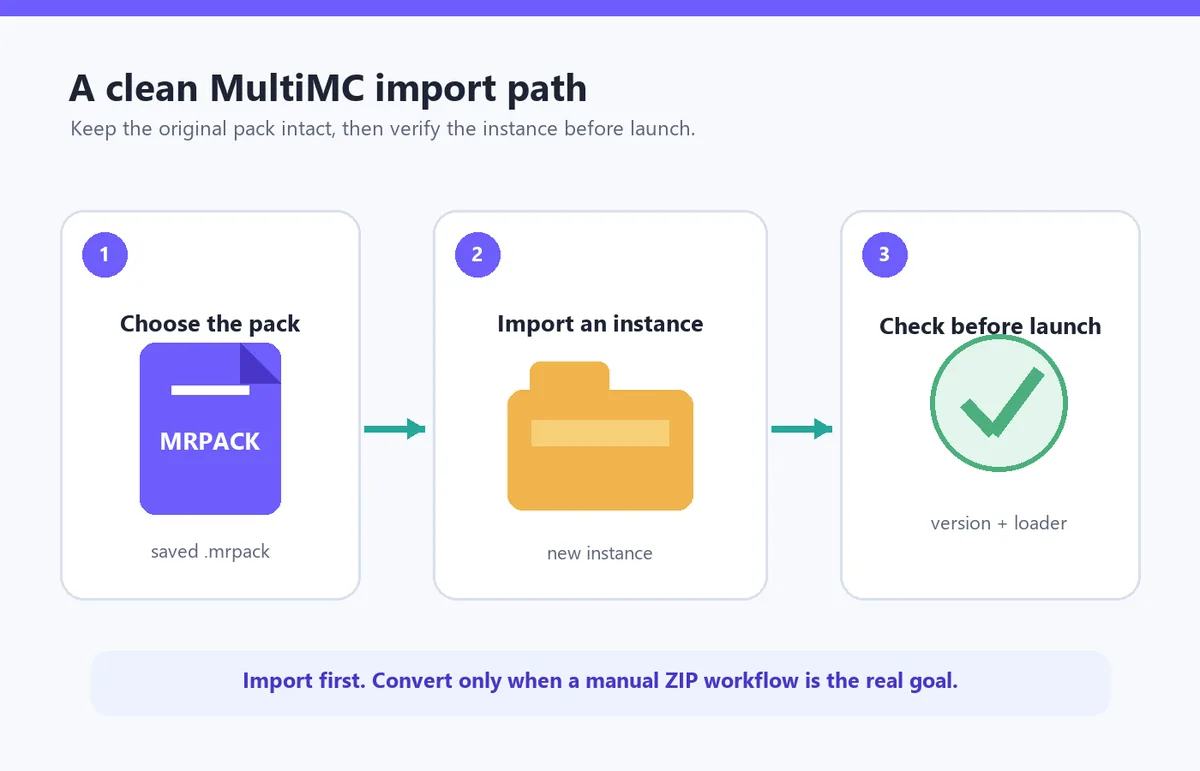
What to prepare before importing
Before opening MultiMC, put the file somewhere easy to find and check that the download completed. A healthy pack normally keeps the .mrpack extension and should not be a web page saved with the wrong name. If you downloaded from a project page, confirm that the Minecraft version and loader match the release you intend to play.
- A complete MRPACK: avoid interrupted downloads or files that are only a few kilobytes when the project is much larger.
- The right Java and launcher setup: MultiMC needs a compatible Java runtime for the Minecraft version you are installing.
- Enough disk space: the archive can reference many mod files, and the finished instance needs room for libraries, configs, and logs.
- A clear goal: direct import is best for playing; conversion is better for inspecting files, moving them manually, or preparing a special server workflow.
How to install MRPACK in MultiMC
1. Download the intended pack release
Use the pack author’s Modrinth project or another source you recognize. Pick the release that matches your Minecraft version and loader. A pack for Fabric is not interchangeable with a Forge profile simply because the mod names look similar. Save the complete file locally and check that its name ends in .mrpack.
2. Open MultiMC and start a new instance
Launch MultiMC and choose the control used to add a new instance. The exact button wording can vary slightly by build, but the goal is to create an instance from an imported pack rather than from a blank Minecraft version. If you already have a test instance, avoid overwriting it until the new import works.
3. Choose the import-from-archive path
In the add-instance dialog, select the import option intended for an archive or downloadable modpack. MultiMC’s official import instructions describe using a local archive or a direct download link. Choose the local-file option when the MRPACK is already on your computer. If you use a URL, it should point to the file itself, not only to a project landing page.
4. Select the MRPACK or paste a direct file link
Browse to the saved .mrpack file and confirm the selection. For a direct link, use a stable download address from a trusted source. A link that opens HTML, asks for an account, expires quickly, or redirects through a button page may not work as an archive import. In that case, download the file first and import the local copy.
5. Let MultiMC resolve the pack
After the import starts, give the launcher time to read the manifest and retrieve the referenced files. Do not close it just because the first progress step looks idle. If a host is slow or a file is unavailable, the launcher may need to report the problem before it can finish. Keep the error text or log location; it is more useful than repeatedly guessing.
6. Review the instance before launching
Open the imported instance settings and verify the Minecraft version, loader type, loader version, Java runtime, memory plan, and instance folder. Then launch once and watch for missing dependencies or a loader mismatch. If the pack reaches the title screen, test a disposable world before copying important saves into the new profile.
The safest first-launch checklist
What to do when the MultiMC import fails
An import failure usually tells you more about the file or the environment than about the filename. Start with the simplest checks and change one thing at a time.
- The file is not selectable: enable an all-files view, confirm the extension, and make sure you are in the archive import dialog rather than a mod-JAR picker.
- The archive is invalid: download it again and inspect the root. A valid Modrinth pack should expose
modrinth.index.jsonat the expected level. - Downloads fail: check the network, the host named in the error, and whether the release still exists. A manifest can reference files that later become unavailable.
- The game crashes on launch: compare Minecraft, loader, Java, and dependency versions before changing configs or deleting files.
- The pack imports but is incomplete: use the MRPACK Reader to inspect paths, hashes, download hosts, overrides, and client/server environment rules.
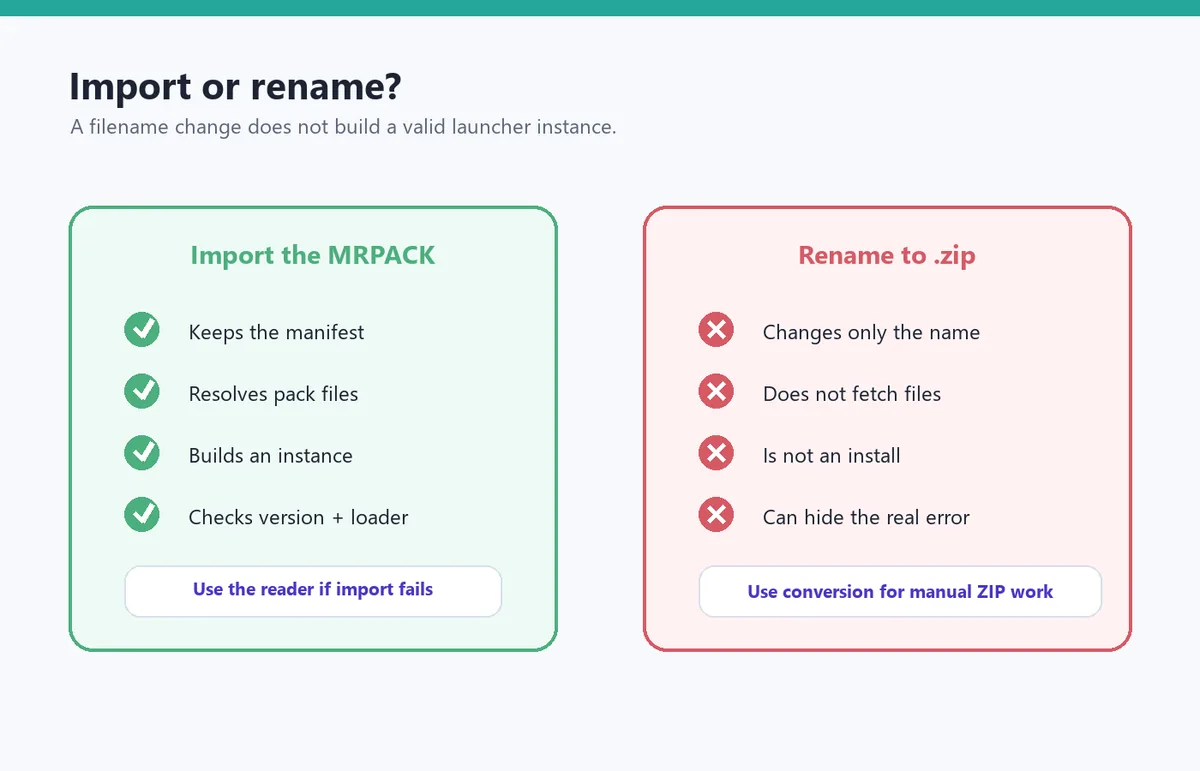
Why renaming MRPACK to ZIP is not an install
Because MRPACK is ZIP-based, renaming a copy can be useful for quick archive inspection. It does not, however, make MultiMC install the pack. The important information is the manifest, the referenced downloads, the override folders, and the launcher’s instance setup.
| Action | What it does | Best use |
|---|---|---|
| Import the MRPACK | Reads the Modrinth pack structure and builds a launcher instance. | Playing the pack in MultiMC. |
| Rename a copy to ZIP | Lets an archive tool inspect what is already inside the container. | Quick review, not a complete installation. |
| Use the MRPACK to ZIP converter | Attempts to package referenced files and overrides into a standard ZIP, while reporting failures. | Manual installation, server preparation, or unsupported workflows. |
When to use the converter or a different launcher
Use the native import route when your goal is simply to play and the MRPACK is valid. If MultiMC is not the destination, the Prism Launcher import guide covers a similar instance workflow. The broader MRPACK installation guide compares Modrinth App, Prism, CurseForge, servers, and manual copying.
Choose the site’s MRPACK to ZIP converter when you need to inspect the pack before upload, prepare files for a server, extract mod JARs, or work with a destination that does not understand MRPACK. The converter is not a magic repair for a broken source file: if the manifest is incomplete or a host blocks a download, the output should be reviewed rather than trusted blindly.
If you want to understand the format first, read what an MRPACK file contains or use the modrinth.index.json guide. Those pages help separate a real pack problem from a normal limitation of archive inspection.
Safety and file-checking notes
Only import packs from sources you trust. A launcher can download many files on behalf of a pack, and an override folder can change configs, resource packs, scripts, or other runtime behavior. Keep backups of worlds and personal settings, test new packs in a disposable instance, and avoid replacing a working profile until the imported copy has launched successfully.
For the format rules behind the manifest, compare the package with Modrinth’s official MRPACK format documentation. For the launcher-specific import path, consult the official MultiMC import instructions when your build uses different labels.
FAQ: installing MRPACK in MultiMC
Can MultiMC install MRPACK files?
Yes. Use the add-instance import workflow with the complete MRPACK file or a trusted direct download link. After the import, check the version, loader, Java runtime, and dependency status before launching.
Can I put an MRPACK in the Minecraft mods folder?
No. The mods folder expects individual mod JAR files. An MRPACK is a pack container with metadata and download references, so it belongs in a compatible launcher import path or a deliberate conversion workflow.
Can I import an MRPACK from a URL?
Usually, yes, when the URL is a direct and reachable archive download. If it opens a project page, expires, redirects through an HTML button, or requires a login, save the file locally and import the local copy instead.
Does MultiMC download every mod in the pack?
It uses the manifest and referenced downloads, but a missing file, blocked host, or network interruption can prevent a complete setup. Review the import result and logs, then compare the missing path with the pack manifest.
Should I convert MRPACK to ZIP first?
Not for a normal MultiMC install. Direct import is the cleaner path because it keeps the manifest-driven workflow. Convert only for manual inspection, server preparation, or a destination that needs a standard ZIP.
What if the MRPACK is valid but MultiMC still fails?
Try a fresh download, confirm the archive root, check the launcher build and Java runtime, and compare Minecraft and loader versions. If the failure is a missing download, use the reader to identify the host or switch to a clean copy rather than repeatedly renaming the file.
Final takeaway
The reliable way to install MRPACK in MultiMC is to import the original file into a new instance, let the launcher resolve its manifest, and verify the resulting profile before the first real launch. Renaming the archive is only an inspection trick. Keep ZIP conversion as a targeted fallback for manual files, server preparation, or unsupported destinations, and keep the original MRPACK so you can retry or compare the result.
Need a different workflow?
Use the general installation guide for launcher choices, inspect the manifest with the reader, or convert the pack when a manual ZIP is genuinely required.
Sources and editorial notes
The import workflow and archive distinction were checked against official MultiMC and Modrinth documentation on September 13, 2026. The diagrams are editorial fallback graphics, not official screenshots.