Quick answer
To share a Modrinth modpack with friends, first choose whether the group needs a managed Modrinth App instance or a one-time file. Use the App's Share tab when you want username invites, a share link, selected configuration files, and update pushes. Export a direct .mrpack when you want to send one self-contained package through a trusted link. Publicly publishing a Modrinth project is a different workflow, so it is not required for a private group.

Choose the right way to share modpacks on Modrinth
There are three practical paths. The first is App instance sharing, which is designed for a small group that can sign in and wants an ongoing relationship with the pack. The owner invites a username or creates a link, and the recipient reviews the proposed instance before accepting. When the owner changes the instance, the group can receive an update instead of starting from a new download every time.
The second path is a public or unlisted Modrinth project. This makes sense when you want a project page, versions, changelogs, icons, or a wider audience. It also means following Modrinth's distribution and review rules. A project is a publishing decision, not just a convenient way to send a file to two friends. Read the site's Modrinth upload guide if you really need a public project.
The third path is a direct file. Export the instance as an MRPACK, upload it to a trusted file host, and give the intended people the link. This is fast and works for a private group, but every meaningful change requires another export and another message. A direct file should keep its .mrpack extension so a compatible launcher can recognize the manifest.
For the current product details, compare the Modrinth Help Center sharing guidance with the official shared-instances announcement. The first explains distribution choices; the second documents the App invite, content review, and update-push model. UI labels can change, so use those sources as the final reference when a button has moved.
| Method | Best for | What friends receive | Main trade-off |
|---|---|---|---|
| Modrinth App Share tab | A private group that will play and update together | An invite or share link, instance content, and selected config files | Everyone needs a compatible App account and must review the invite |
| Modrinth project | A public pack with versions and a project page | A project page with published releases | Review, permissions, documentation, and ongoing maintenance |
| Direct MRPACK file | A quick one-time handoff or a small trusted group | A downloadable archive that the recipient imports | No automatic update path; resend after changes |
Share an instance with friends in Modrinth App
Before you create an invite, launch the instance yourself once. Confirm the Minecraft version, loader, required mods, resource packs, and the configuration files that make the pack behave as intended. Sharing a broken instance only multiplies the troubleshooting work. Keep a clean backup of your local instance so you can compare it with the version you send.
- Open the Modrinth App and select the instance you want to distribute.
- Open the instance's sharing or Share tab. The current App flow requires you to be signed in.
- Choose a username invite or create a share link. A username invite is easier to limit to one account; a link is convenient for a group but should be treated like an invitation credential.
- Select the additional configuration files that friends need. Explain any file that contains personal settings, local paths, server addresses, or credentials before you include it.
- Send the invite through a channel your group already trusts. Tell friends which Minecraft version and loader they should expect before they accept.
The exact button labels can change as the App evolves, but the decision is stable: share the instance from its own management screen, then review the content that will leave your computer. Do not confuse the Share tab with a project publishing form. A private invite does not turn a pack into a public Modrinth listing.
What friends receive and how updates work
A shared instance can carry its name and icon, the instance content, and extra configuration files selected by the owner. It does not remove the need for the recipient to check what is being offered. The recipient should compare the Minecraft version, loader, pack name, and expected server or resource-pack settings with the message that accompanied the invite.
When a friend receives an invite, they should open the request inside the Modrinth App, inspect the proposed content, and accept only when the sender is known. After acceptance, the App creates or adds the shared instance to the recipient's library. The first launch should be treated as a test: check the log, confirm the loader, and make sure the pack reaches the title screen before joining a shared server.
The useful difference from a direct file is update handling. The owner can push a change to the shared instance, while recipients can review what changed and accept the update. That creates a clear boundary between the sender's tested source instance and the copy used by friends. Still keep a backup before accepting a large update, especially when the pack includes a world save or custom configuration.

Export and send a direct MRPACK file
A direct file is the clearest fallback when a friend does not use App sharing or when you need to preserve one exact snapshot. Export the tested instance as an MRPACK, give the archive a descriptive name, and keep the original extension. Include a short message with the pack name, Minecraft version, loader, date, and whether the file is client-only or intended for a server workflow.
- Remove temporary logs, personal screenshots, and local-only files from the instance before export.
- Use the Modrinth App export action or the pack creator's documented export workflow.
- Open the resulting archive with the MRPACK Reader or a local archive tool and confirm that
modrinth.index.jsonis at the root. - Upload the file to a trusted host with access controls that match your group. Avoid posting a private pack link in a public channel.
- Send the link and a compact install note. Friends can follow the MRPACK installation guide if they are unsure which launcher to use.
Do not rename the archive to imply that it is a normal ZIP profile. An MRPACK is ZIP-based, but its manifest tells a compatible launcher how to resolve files and dependencies. If a recipient's launcher cannot import it, explain that the MRPACK to ZIP converter is a manual-install fallback, not a replacement for the pack's manifest-aware workflow.
Check permissions, files, and privacy before sending
Sharing a pack is also a distribution decision. Review every file that will leave your machine, including configuration files, server addresses, private resource packs, local scripts, and credentials. A configuration file can reveal more than the mod list. Remove tokens, passwords, webhook URLs, and personal path names. If the pack contains content hosted outside Modrinth, verify that you have permission to redistribute the file or use the original download path.
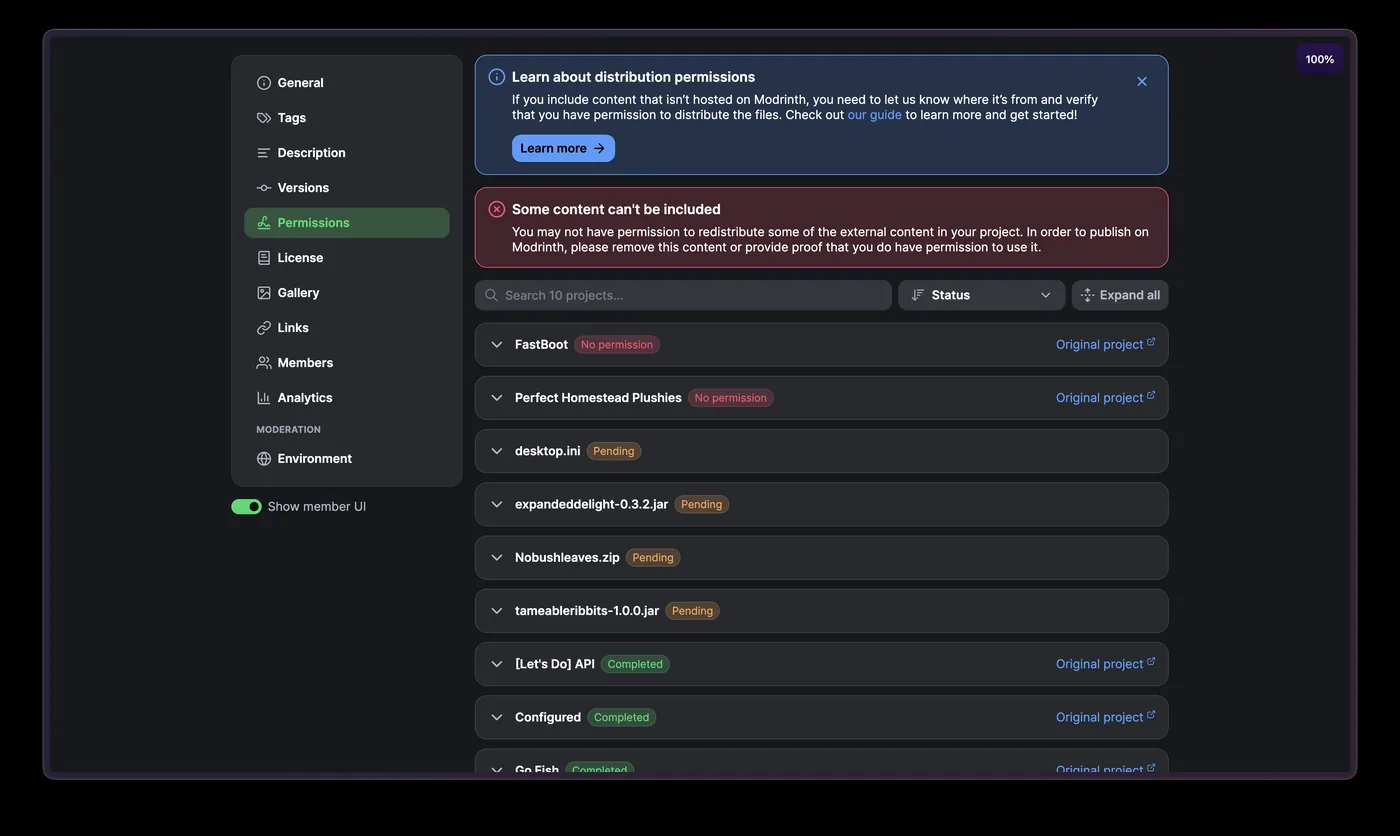
Use a simple trust rule: only accept a Modrinth invite or MRPACK from a person or project you recognize. A launcher can make installation convenient, but it cannot tell you whether a sender intended every included file for you.
Keep the original archive and a checksum or release note when the group needs repeatable installs. If the pack is for a server, keep the client and server package separate and follow the server-specific guide instead of sending a client instance blindly.
Troubleshoot a missing invite, stale pack, or failed import
The invite or link does not open
Check that the recipient is signed in to the intended Modrinth account, that the link was copied completely, and that the sender has not revoked or replaced it. For a direct file, confirm that the host did not expire the URL and that the downloaded file is not an HTML error page saved with an MRPACK extension.
The friend sees the instance but cannot launch it
Compare the Minecraft version, loader, Java runtime, and file download log. A shared instance can still fail when a dependency host is unavailable or a client-only mod was placed in a server workflow. Ask the recipient to inspect the manifest before changing random files.
The pack is out of date
For App sharing, check whether an update is waiting for review and read the change summary before accepting. For a direct file, export a new MRPACK and label it with a new release date or version identifier. Do not overwrite a known-good file without telling friends what changed.
A recipient wants a ZIP instead
Explain the trade-off first. ZIP output can help with a launcher that lacks native MRPACK support, but manual installation can omit referenced downloads or overrides. Use the converter and then inspect the resulting folders; do not treat a renamed archive as a complete installation.
FAQ about sharing a Modrinth modpack
What is the easiest way to share a Modrinth modpack with friends?
Use Modrinth App instance sharing when everyone can sign in and you want update pushes. Use a direct MRPACK export when the group needs one downloadable snapshot or when App sharing is unavailable.
Can I share a Modrinth modpack without publishing it?
Yes. An App invite or a direct MRPACK link can keep the pack private. Publishing a project is useful for a wider audience, versions, and a project page, but it is not required for a small group.
How do I make a Modrinth modpack share link?
Open the instance's Share tab in Modrinth App, sign in, and choose the option to create a share link. Send the link only to the people who should receive the instance, and remind them to review the request.
How do I accept a shared modpack request in Modrinth?
Open the invite in the Modrinth App account that received it, check the pack name and content summary, then accept it if the sender and files are trusted. Complete one clean launch before adding personal worlds or extra mods.
Can I send a shared pack through Google Drive or Dropbox?
You can use a trusted file host for a direct MRPACK, provided the file remains unchanged and the link is private enough for your group. Share the exact Minecraft version and loader alongside the link, and resend a fresh export after updates.
Should I convert the pack to ZIP before sharing it?
Only when a recipient's launcher or server workflow requires ZIP. Native MRPACK import preserves the manifest-aware workflow; ZIP conversion is a manual fallback that needs an extra check of downloads, overrides, and client/server files.
Final checklist for the sender:
- Test the instance once with the intended Minecraft version and loader.
- Choose App sharing for managed updates or a direct MRPACK for a one-time snapshot.
- Remove credentials, private paths, and files you cannot redistribute.
- Tell friends what they are receiving and where to ask for help.
- Keep a known-good export before you push or send a new update.
Need a ZIP fallback for a friend?
The homepage converter can turn a public or local MRPACK into a ZIP-style package for manual inspection. Use it only when the recipient's workflow needs ZIP, then check the output folders and failed-download notes.
Open the MRPACK to ZIP converter