Quick answer
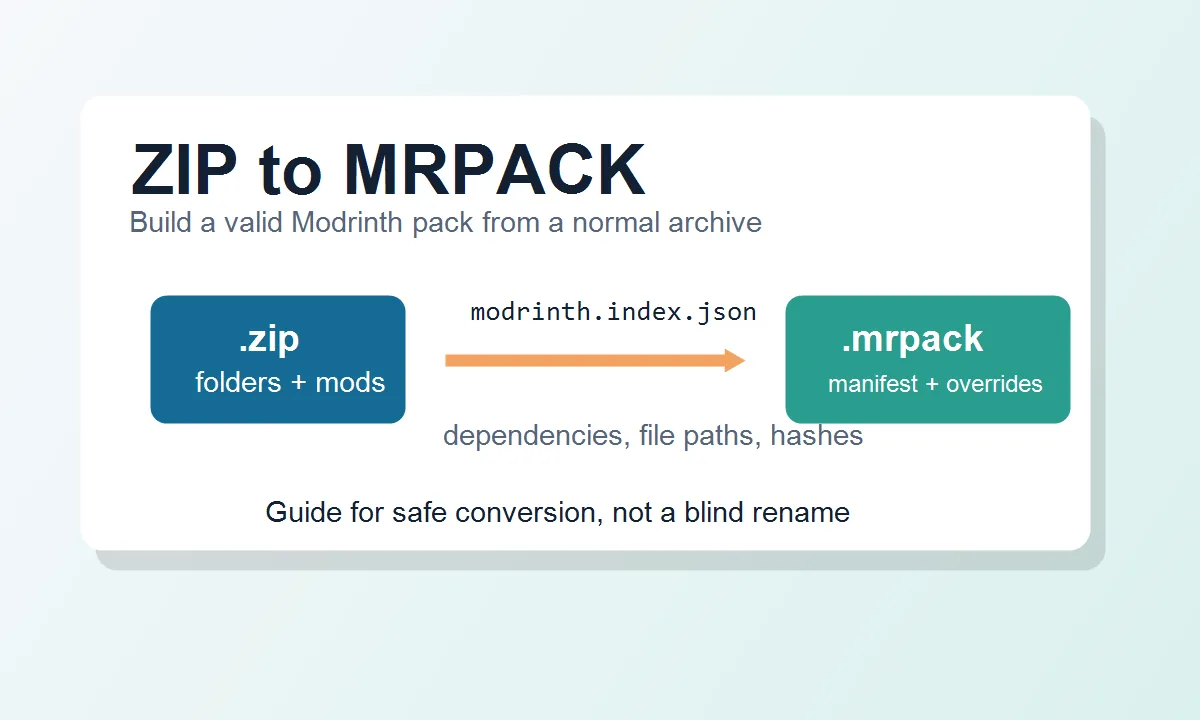
If you searched for ZIP to MRPACK, the important answer is this: an .mrpack file is technically a ZIP-based archive, but a normal ZIP modpack is not automatically a valid Modrinth pack. A real MRPACK must contain a modrinth.index.json manifest at the archive root, plus the correct override folders and file metadata.
That means you can create an MRPACK from a ZIP only when you can describe the pack in Modrinth's expected structure. If your ZIP is just a folder full of JAR files, configs, and screenshots, a blind rename from .zip to .mrpack will usually fail.
A real ZIP to MRPACK converter therefore has to be manifest-aware: it must account for Minecraft and loader dependencies, file paths, hashes, download sources, and overrides. If it cannot verify those pieces, treat it as a guide or rebuild workflow rather than a trustworthy one-click export.
Why ZIP to MRPACK is a different search intent
The homepage converter focuses on the opposite direction: MRPACK to ZIP. That workflow helps people inspect a Modrinth pack, collect files, and work with a more familiar archive. ZIP to MRPACK is a different job. You are asking a launcher to understand a pack as a Modrinth package, not just as a compressed folder.
Most ZIP to MRPACK searches come from one of three situations: a player exported a pack from another launcher, a server owner has a hand-built mods folder, or a creator wants to distribute a pack through a Modrinth-friendly format. Those goals are related, but they need different levels of metadata cleanup.
ZIP to MRPACK converter checklist: can your ZIP be rebuilt?
Before looking for a one-click ZIP to MRPACK converter, inspect what kind of ZIP you have. The archive can be rebuilt into a valid Modrinth pack only when you can identify its Minecraft version, loader, mod sources, file versions, overrides, and redistribution permissions.
| ZIP contents | Conversion outlook | Next action |
|---|---|---|
CurseForge manifest.json plus overrides | Possible, but not automatic | Map every project/file to a compatible Modrinth source, then generate a new MRPACK manifest. |
mods/, config/, and resource folders | Manual rebuild required | Identify each JAR, loader, game version, hash, and allowed download URL. |
An existing modrinth.index.json at the root | May already be MRPACK-shaped | Validate manifest paths and dependencies, then test after changing the extension. |
| World save, screenshots, or unrelated files only | Not a modpack conversion | Separate the instance data and build a real pack definition first. |
What a valid .mrpack file needs
Modrinth documents the MRPACK format as a ZIP archive that uses the .mrpack extension and includes modrinth.index.json at the root. That manifest is the heart of the pack. It tells compatible launchers what Minecraft version and loader are required, which files belong in the instance, where downloadable files come from, and how those files can be verified.
In practical terms, a valid MRPACK is closer to a recipe than a storage box. The ZIP container matters, but the manifest is what makes the pack installable.
| Part | What it does | Why a normal ZIP may fail |
|---|---|---|
modrinth.index.json |
Defines pack name, version, dependencies, file paths, hashes, and downloads. | A generic ZIP usually has no Modrinth manifest at all. |
overrides/ |
Stores files that should be copied directly into the instance, such as configs and resources. | Loose folders may need to be reorganized so launchers copy them correctly. |
| Dependencies | States the Minecraft version and loader such as Fabric, Forge, Quilt, or NeoForge. | A ZIP may contain mods without saying which loader version they require. |
| File hashes and URLs | Help launchers download and verify the right files. | Local JAR files do not automatically provide Modrinth project IDs or approved download sources. |
Can you convert a CurseForge ZIP to MRPACK?
Sometimes, but this is where many quick answers become misleading. A CurseForge export is also a structured modpack ZIP, but it uses a different manifest model. A CurseForge ZIP may describe project IDs, file IDs, overrides, and Minecraft metadata in a way that is useful to CurseForge tools, not directly equivalent to Modrinth's MRPACK manifest.
To turn that kind of ZIP into an MRPACK, you need to map the pack to Modrinth-compatible files. Some mods may exist on both platforms. Some may not. Some files may have different project pages, versions, loaders, or licensing terms. If you cannot identify a safe Modrinth-side source for a file, the conversion is not a clean one-click task.
Example: if a CurseForge ZIP lists 120 project/file IDs, the job is not complete when you copy 120 JARs into a new archive. Each entry needs a Modrinth-compatible download source or an allowed override decision, plus matching hashes and paths in modrinth.index.json. That is why “CurseForge ZIP file to MRPACK” is a migration and validation task rather than a simple format rename.
Do not publish a converted pack blindly
For private troubleshooting, you can experiment locally. For public distribution, verify permissions, file sources, and platform rules. Modrinth's modpack permissions guidance is worth reading before you share a converted pack. A pack that installs on your computer is not automatically suitable for public upload or redistribution.
The safest ZIP to MRPACK workflow
The safest workflow is to rebuild the pack metadata rather than pretending the ZIP already has it. A pack management tool such as packwiz can help because it tracks mod metadata, downloads, hashes, dependencies, and export formats more deliberately than manual folder dragging. Its Modrinth export command is designed to output an .mrpack from a managed pack. A launcher workflow that exports Modrinth packs can also be useful when it preserves the right metadata.
Use this checklist before trying to export or publish an MRPACK:
- Identify the Minecraft version and mod loader version the ZIP was built for.
- Separate ordinary instance files from mod files. Configs, resource packs, shader packs, and default options usually belong in overrides.
- Map each mod JAR to a reliable source. Prefer official Modrinth project versions when the pack is meant for MRPACK.
- Generate or verify hashes for files that the manifest references.
- Create
modrinth.index.jsonwith correct dependencies, file paths, hashes, and download URLs. - Test the resulting
.mrpackin a launcher that supports Modrinth packs before sharing it.
When a ZIP is close enough to rebuild
A normal ZIP becomes a realistic MRPACK candidate only when you can identify the pack's source data. If the archive was exported from a launcher profile you control, includes a clear Minecraft version, and uses mods that have reliable Modrinth project pages, the rebuild is practical. If the ZIP is a random folder from an old server, the work can become manual research rather than simple conversion.
Use the ZIP as source material, not as the final package. The goal is to create a new modrinth.index.json that accurately describes dependencies, paths, hashes, and downloads. If you cannot verify a file's origin or redistribution permission, keep the result private or choose a manual install workflow instead of publishing an MRPACK.
ZIP to MRPACK readiness checklist
Before you spend time rebuilding the archive, check whether the ZIP has enough information to become a reliable MRPACK. If several answers are "no," use the ZIP as a private manual install instead of forcing it into a Modrinth-native package.
| Question | Ready for MRPACK when... | Risk if missing |
|---|---|---|
| Do you know the Minecraft and loader version? | The ZIP clearly maps to one Fabric, Forge, Quilt, or NeoForge instance. | The exported pack imports but crashes immediately. |
| Can every mod JAR be traced to a valid source? | Each file has a known project page, version, download URL, and allowed distribution path. | Launchers cannot download or verify files correctly. |
| Are configs and resources separated from mods? | Non-mod files can be placed under appropriate override folders. | The pack imports without the settings that made it work originally. |
| Is this for public sharing? | Permissions, licenses, and platform rules have been checked. | The pack may violate redistribution expectations even if it works locally. |
What the manifest structure looks like
The exact fields depend on the pack and format version, but a simplified MRPACK manifest conceptually looks like this:
{
  "formatVersion": 1,
  "game": "minecraft",
  "versionId": "1.0.0",
  "name": "Example Pack",
  "dependencies": {
    "minecraft": "1.20.1",
    "fabric-loader": "0.15.0"
  },
  "files": [
    {
      "path": "mods/example.jar",
      "hashes": { "sha1": "..." },
      "downloads": ["https://..."]
    }
  ]
}
This is why a plain ZIP full of files is incomplete. It can contain the same visible mods, but without the manifest a launcher does not know how to resolve the pack in a Modrinth-native way.
When ZIP to MRPACK is not worth it
There are cases where converting to MRPACK creates more work than it saves. If you only want to play with friends, a normal ZIP or a launcher export may be enough. If the pack contains many mods that are not available from Modrinth-compatible sources, forcing it into MRPACK may create broken downloads. If you only need to inspect a pack, use a ZIP workflow instead of rebuilding the pack format.
For the reverse scenario, the Modrinth modpack to ZIP guide explains why extracting or converting an existing MRPACK is often much simpler. If your confusion is about JAR files inside a pack, the MRPACK to JAR guide explains why a pack is not one giant mod JAR.
Common mistakes
Renaming .zip to .mrpack
This only changes the extension. It does not create modrinth.index.json, fix paths, identify loaders, or produce valid download metadata.
Putting every file in overrides
Overrides are useful for configs and direct-copy files, but stuffing all mod JARs into overrides can defeat the purpose of MRPACK metadata and may create distribution problems.
Ignoring client-only and server-only files
A pack that works on a client may not work on a server. Check environment rules, loader compatibility, and any files that should not be installed on both sides.
Assuming CurseForge and Modrinth IDs match
They do not. A mod can have different IDs, file naming, version availability, or hosting status across platforms.
Exporting before testing a clean instance
A ZIP that works only because your existing instance has cached libraries or leftover configs may fail for everyone else. Test a clean launcher instance before you trust the exported MRPACK.
FAQ
Is there a one-click ZIP to MRPACK converter?
Not for arbitrary ZIP files. A tool can export MRPACK when it already manages the pack metadata, but a random ZIP does not provide enough reliable information to generate project sources, hashes, dependencies, and permissions automatically. A valid converter must make those fields explicit or guide you through rebuilding them.
How do I get an MRPACK file from a ZIP?
Inventory the ZIP, identify the Minecraft and loader versions, map every mod to an allowed source, move local files into overrides, generate modrinth.index.json, package it at the archive root, and test the result in a compatible launcher.
Can I convert ZIP to MRPACK online?
Only if the online tool can build a valid Modrinth manifest from reliable metadata. A simple upload-and-rename tool is not enough. Be cautious with any converter that does not show how it handles dependencies, hashes, file paths, and download sources.
Is .mrpack just a ZIP file?
It is ZIP-based, but that does not mean every ZIP is a valid MRPACK. The required manifest and structure are what make the archive useful to Modrinth-compatible launchers.
Can I include local JAR files inside an MRPACK?
For private use, launchers may tolerate different workflows, but public MRPACK distribution should rely on valid metadata and allowed file sources. Check the target platform's rules before distributing bundled files.
What is the best ZIP to MRPACK converter?
The best workflow is usually not a blind converter. Use a pack management approach that understands Modrinth metadata, then export and test the resulting MRPACK.
Why does my converted MRPACK fail to import?
Common causes include missing modrinth.index.json, incorrect dependency versions, bad paths, invalid hashes, blocked downloads, or files that do not match the manifest.
Can I turn a folder into MRPACK?
Only after the folder is organized into a valid pack model. You still need dependencies, file paths, hashes, downloads, and overrides. Compressing a folder and changing the extension is not enough.
Should I use ZIP to MRPACK for a server pack?
Use it only when you can separate server-safe mods and server overrides. Many client packs include UI, shader, or client optimization files that do not belong on a dedicated server.
Can I convert a CurseForge ZIP file to MRPACK?
Sometimes, but only after mapping CurseForge project and file metadata to Modrinth-compatible sources. Do not assume the IDs, downloads, or permissions match. If a mod is not available from a safe Modrinth-side source, the converted MRPACK may fail to import or may not be appropriate to share.
What is the minimum file a ZIP needs before MRPACK export?
The final package needs a valid modrinth.index.json at the root. That manifest should list the game, version, dependencies, file paths, hashes, and download URLs. A ZIP with only a mods folder can be useful for private play, but it is not enough for a reliable Modrinth-native export.
Final takeaway
ZIP to MRPACK is possible when you rebuild the pack as a real Modrinth package. It is not possible as a reliable one-step rename. Treat the ZIP as source material, create a correct manifest, organize overrides, verify downloads and hashes, then test the final .mrpack in a compatible launcher.
If your goal is simply to inspect or manually install a Modrinth pack, start with the site's MRPACK to ZIP converter. If your goal is to publish or share a Modrinth-native pack, take the slower metadata-first route and follow the dedicated MRPACK creation guide. That is the path that prevents broken imports and confusing installs.
Need the reverse conversion?
If you already have a Modrinth .mrpack and want a ZIP you can inspect, use the free browser-based converter on the homepage.